REXX + PowerShell
I’m not a PowerShell expert, however, I’m always looking to learn new things. So, if you are, I’d love to hear from, and learn from you.
What we’ll be doing
We’ll be building a report of the last logon for all users on a Windows computer. Since I don’t have access to Active Directory, we’ll be using a local Windows computer for this example. First, we use PowerShell to collect the data, and REXX to format it into a clean, readable report. By the end of this article, you’ll see how these two tools could compliment each other in your toolset.
There are a variety of interpters for REXX, but for this example, we’ll be using Regina to run our REXX code.
Felix (PowerShell) meets Oscar (REXX): An Odd Couple?
At first glance, the pairing of PowerShell and REXX may seem odd. PowerShell is a modern scripting language, with a rich feature set, and API’s to do just about anything on Windows. Not only is it powerful, I’d venture to say it is the clear favorite among Windows administrators. REXX, while feature rich in its own right, is more often associate with Systems Programmers on the Mainframe, and not typically associated with Windows administration.
Why This Combination Works
PowerShell is great at collecting data. It can easily query Windows APIs, interact with Active Directory, and if you’re cloud focused, it had the ability to interact with Azure and AWS, and like REXX, it can automate tasks.
However, while PowerShell is great for collecting data, it thinks in objects. Don’t get me wrong, this is a good thing, as it means well structured data. It also means that if you want to format that data for a report, you need to use PowerShell’s formatting cmdlets, which when compared to REXX, can be a bit verbose, and I’d venture to say, not as easy to read; but that’s a personal opinion. This is where REXX comes in. REXX thinks in text: lines, words, characters. Its strength is parsing, transforming, and makes formatting data for a report a breeze.
The PowerShell Code
This first part goes over the PowerShell code, and the second part goes over the REXX code.
We’re going to be using the Get-LocalUser cmdlet to collect the data, and REXX to format it into a clean, readable report. The Get-LocalUser cmdlet returns a list of local users on the computer.
The Get-LocalUser Cmdlet
Running the Get-LocalUser cmdlet returns a list of local users on the computer, formatted similar to the following:
PS > Get-LocalUser

Name               Enabled Description
----               ------- -----------
Administrator      False   Built-in account for administering the computer/domain
User1              True
DefaultAccount     False   A user account managed by the system.
User2              True
Guest              False   Built-in account for guest access to the computer/domain
Stephen            True
WDAGUtilityAccount False   A user account managed and used by...
Giving credit where credit is due, I found this to be a nicely formatted report, however, I really wanted to see the last logon date for each user. So, I used the Get-LocalUser cmdlet again, but this time piped the output to the Select-Object cmdlet to select the Name, and LastLogon properties. The LastLogon property is a timestamp, formatted similar to the following: 1/19/2026 1:11:59 PM, and by adding this to our report, it changes to the following:
PS > Get-LocalUser | Select-Object Name, LastLogon

Name               LastLogon
----               ---------
Administrator
User1              10/7/2025 9:25:00 AM
DefaultAccount
User2              10/3/2025 8:57:39 AM
Guest
Stephen            1/19/2026 8:47:14 AM
WDAGUtilityAccount
This isn’t bad, and it does give us the information we need, however, I’d like to make it a bit more readable, and maybe even filter out accounts that have never logged on. To do this, we’ll use the Where-Object cmdlet to filter out accounts that have never logged on.
The Where-Object Cmdlet
The Where-Object cmdlet is used to filter objects based on a condition. In this case, we’ll use it to filter out accounts that have never logged on. What I found interesting about this is I don’t actually have to use the Where-Object, I can use the Where alias, which cuts down on the verbosity of the code.
At this point, I have to admit, I made a noob move, and I was assuming that the value of LastLogon is an empty string, so ran the following:
PS > Get-LocalUser | Where LastLogon -ne '' | Select-Object Name, LastLogon

Name               LastLogon
----               ---------
Administrator
User1              10/7/2025 9:25:00 AM
DefaultAccount
User2              10/3/2025 8:57:39 AM
Guest
Stephen            1/19/2026 8:47:14 AM
WDAGUtilityAccount
As you can see, it didn’t work, and I found that the I actually needed to filter on $null. As a reminder, in REXX, there is no native concept of a NULL, it’s an empty string. So, I changed the condition to the following:
PS > Get-LocalUser | Where LastLogon -ne $null | Select-Object Name, LastLogon

Name               LastLogon
----               ---------
Administrator
User1              10/7/2025 9:25:00 AM
User2              10/3/2025 8:57:39 AM
Stephen            1/19/2026 8:47:14 AM
Perfect! This is what we wanted to see.
In my further research of this topic, I discovered that access to the current object within the Where-Object cmdlet is through the $_ variable, which is and alias for $PSItem. I found that I can access this with using what’s called a ScriptBlock, which is a block of code that can be executed, between curly braces {}. What this means, is I could filter on the LastLogon property, using a syntax similar to the following, with the same result.
PS > Get-LocalUser | Where { $_.LastLogon -ne $null } | Select-Object Name, LastLogon

Name               LastLogon
----               ---------
Administrator
User1              10/7/2025 9:25:00 AM
User2              10/3/2025 8:57:39 AM
Stephen            1/19/2026 8:47:14 AM
Before we move on, out of curiosity I was interested in seeing if I could change the format of this timestamp; perhaps I wanted it to look like 2025-10-07. It turns out there is more than one way to skin a cat in PowerShell, and these are a few of the way that I found interesting.
Using ToString to Format the Timestamp
PS > Get-LocalUser | Where { $_.LastLogon -ne $null } | Select-Object Name, { $_.LastLogon.ToString('yyyymmdd') }

Name               LastLogon
----               ---------
Administrator
User1              20251007
User2              20251003
Stephen            20251019
Using Get-Date to Format the Timestamp
 Get-LocalUser | Where { $_.LastLogon -ne $null } | Select-Object Name, { Get-Date -Format 'yyyy/mm/dd' $_.LastLogon }

Name     Get-Date -Format 'yyyy/mm/dd' $_.LastLogon
----    --------------------------------------------
User1    2025/25/07
User2    2025/57/03
Stephen  2026/47/19
Removing the column headers
The last step in this is to remove the column headers. This can be done by using the Format-Table cmdlet, also accessed using the ft alias, with the -Hide parameter. Doing this might seem counterintuitive, but when we start processing the data in REXX, I just want to focus on the data, and not the headers, so we’ll remove them… and then re-add them later in REXX.
PS > Get-LocalUser | Where { $_.LastLogon -ne $null } | Select-Object Name, LastLogon | ft -Hide

User1    10/7/2025 9:25:00 AM
User2    10/3/2025 8:57:39 AM
Stephen  1/19/2026 8:47:14 AM
PowerShell Code Summary
Now that we’ve done a bit of exporing into the commands we’re going to need to use, let’s take at how we can hook them into REXX. I found that I can access the information I need with relative easy, and out of the box it produces a clean, readable report. I did however find that filtering and formatting dates was more clunky than I’d like, but having used DAX with PowerBI, and PowerApps before, I found that it wasn’t all that bad.
The REXX Code
Since we now know that the commands we need to use, let’s take a look at the REXX code. Since I’m on windows, and don’t have character resctriction, we’ll name this get_last_logon.rexx. It can then be run from the command line using: regina.exe .\get_last_logon.rexx
Assembling the commands
We’ll start with the flags we need to pass to PowerShell. If you’re curious, what does does is starts a non-interactive PowerShell session, and runs the command we pass to it.
/* Run PowerShell non-interactively and pass the command to run */
ps_flags = '-NoProfile -Command'
Next, we’ll need to create the command we want to run. In this case, we’ll be running the Get-LocalUser cmdlet.
You might recall that this gives all all users, and we want to filter out the ones that have never logged on, but we’re going to handle that in REXX, just for comparison to show how some tasks are easier in REXX, so we’ll just run the command as is.
/* Get the list of local users and hide the column headers */
ps_command = 'Get-LocalUser | Select-Object Name, LastLogon | Format-Table -HideTableHeaders'

/* Assemble the full command */
ps_command = 'powershell' ps_flags '"' ps_command '"'
If you’ve never used REXX before this type of assignment might seem strange, but it is actually really neat. What is happening here is REXX, when it sees the variable on both sides of the assignment, retains the prior value (‘Get-LocalUser…’), then seamlessly prepends the new prefix.
When this section is run, it will output the following command:
powershell -NoProfile -Command " Get-LocalUser | Select-Object Name, LastLogon | ft -Hide "Then, we’ll need to assemble the command we want to run, and pass it to PowerShell. We’ll do this using ADDRESS system, which allows us to run a command in the default shell. The WITH clause is used to tell where the input is coming from, and where the output should go when running external commands. In this case, it’s taking all system output, line-by-line, and storing into a stem variable.
What the heck is a STEM?
Newbies hear STEM and compound variable thrown around:
- STEM = array name before
.→users. - Compound variable = full thing →
users.1,users.2
It’s important to note that items will start at an index of 1. This is because 0, is used to store the total number of records. If for some reason something goes wrong you do want to implement some sort of defensive programming tactic, like checking the value of 0. Also of note, if you create our own stem, stem.0 will not be automatically set, and it’s something you’ll need to handle yourself.
ADDRESS system ps_command WITH output stem users.At this point, the users. stem variable will contain the something similar to this:
users.0 = 4
users.1 = Administrator
users.2 = User1              10/7/2025 9:25:00 AM
users.3 = User2              10/3/2025 8:57:39 AM
users.4 = Stephen            1/19/2026 8:47:14 AM
Creating the report header
No report would be complete without some visual indiciation of what the data might look like. For our report, we’re going to have:
- A primary header that reads “User Login Activity Report”, and it will be centered.
- Two columns:
User, andLast Logon - The last line will be ”-” indicating how wide each column is.
To accomplish this, we’ll use three REXX string formatting functions:
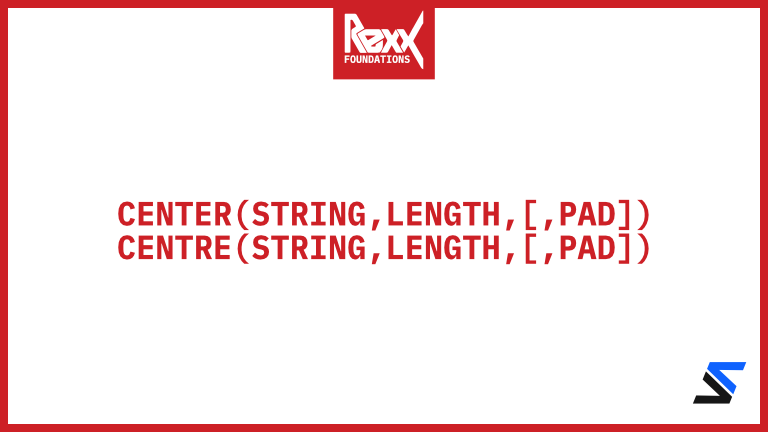
The CENTER/CENTRE Function
The CENTER/CENTRE function allows you to center text in a field of n characters.
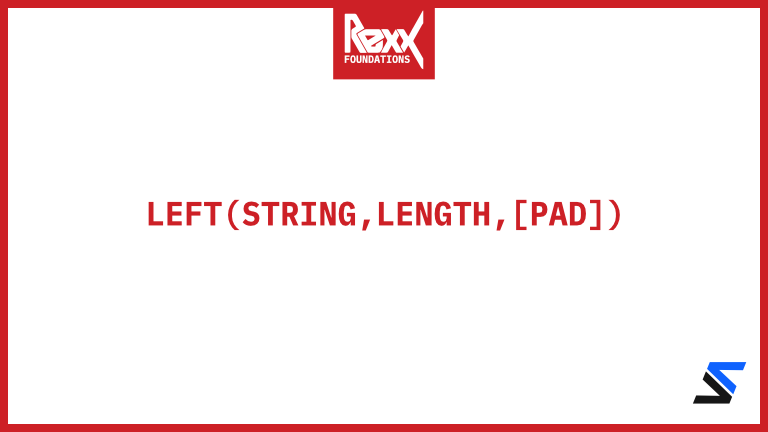
The LEFT Function
The LEFT function allows you to left-align text to a specific width. It will automatically pad shorter strings with spaces, or truncate them if they’re too long.
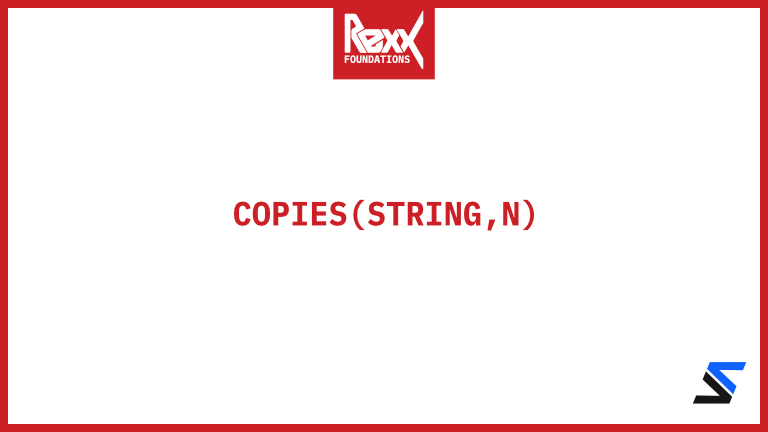
The COPIES Function
The COPIES function allows you to repeat a string n times.
/* Create the report header */
say CENTER(" USER LOGIN ACTIVITY REPORT ", 80, "-")
say LEFT("User", 25),
    LEFT(" ", 1),
    LEFT("Last Logon", 25)
say COPIES("-", 25),
    " ",
    COPIES("-", 25)
The above code will then output the following header before the report is run.
-------------------------- USER LOGIN ACTIVITY REPORT --------------------------
User                        Last Logon
-------------------------   -------------------------
Looping through users.
Before we enter a loop, we want to ensure that there is data. Since users.0 was set for us, we can check to see if it’s value is greater than zero, then begin handling the data. For now, we’ll just display each line.
/* Ensure we've captured something */
IF users.0 > 1 THEN
DO
    /* Loop through the users */
    DO i = 1 TO users.0
        say users.i
    END
END
Running this with should produce:
-------------------------- USER LOGIN ACTIVITY REPORT --------------------------
User                        Last Logon
-------------------------   -------------------------

Administrator
User1               10/7/2025 9:25:00 AM
DefaultAccount
User2                10/3/2025 8:57:39 AM
Guest
Stephen            1/19/2026 8:47:14 AM
WDAGUtilityAccount
Extracting the data
Now that we have the data, we need to extract the data we need. In this case, we’ll need to extract the user name, and the last logon date. Then, based on that we’ll skip over any users that have never logged on, and display the rest of the data.
...
        /* Parse the user name and last logon date */
        PARSE VAR users.i name last_logon .
...
To extract the pieces of data we want, we’ll use the PARSE command. This command takes a string and breaks it down into pieces based on a delimiter. In this case, we’ll use the space as the delimiter to extract the user name and last logon date.
Because the logon date is formatted like 10/7/2025 9:25:00 AM and contains spaces, placing the . at the end lets us ignore the time and just get the date, resulting in: 10/7/2025. If we decide later we want the time and AM/PM, we can remove the . and they’ll be appended to the last variable, last_logon. Now, because they contain spaces, that means we could also assign them to variables. So we could do something like this:
        /*                     10/7/2025       9:25:00         AM             */
        PARSE VAR users.i name last_logon_date last_logon_time last_logon_ante
An additional note on the last_logon_date. Because we know the length of the date field is 25 characters; at least for our report, we could also allow the date variable to be filled up with everything, then using the LEFT function, which requires a length, we could extract just the date, effectively truncating the time and AM/PM. This would look something like this:
        /*                     10/7/2025       9:25:00         AM             */
        PARSE VAR users.i name last_logon_date last_logon_time last_logon_ante
        last_logon_date = LEFT(last_logon_date, 25)
Skipping over users that have never logged on
Now that we have the data, we need to skip over any users that have never logged on. We can do this by checking to see if the last_logon_date is empty, and if it is, we’ll skip it. We’ll use the IF statement to do this, then use the ITERATE statement to skip to the next iteration of the loop.
        /* Skip users that have never logged on */
        IF STRIP(last_logon) == "" THEN ITERATE
Displaying the data
We’ll display the data in a formatted way, and then output the report to screen.
...
        /* Display the user name and last logon date */
        say LEFT(name, 25),
            " ",
            LEFT(last_logon, 25)
...
Running this will output the following:
-------------------------- USER LOGIN ACTIVITY REPORT --------------------------
User                        Last Logon
-------------------------   -------------------------
User1                        10/7/2025
User2                         10/3/2025
Stephen                     1/19/2026
Improving the report
We’re going to wrap this up by adding one more feature to this report, which replace the date, with the total number of days sicne the last long. We can do this using the DATE function.
    /* Calculate the number of days since the last logon */
    parse var last_logon month "/" day "/" year .

    /* Force the month and days to be two digits */
    month = RIGHT(month, 2, '0')
    day = RIGHT(day, 2, '0')
    year = STRIP(year)

    /* Create the date string */
    last_logon_date = year || month || day

    /* Calculate the number of days since the last logon */
    days_diff = DATE("B") - DATE("B", last_logon_date, "S")
Using the PARSE again, we analyze value of the last_logon, and assign three new variables (month, day, and year), while skipping over the / delimeters, and ignoring anything after the year.
    /* Calculate the number of days since the last logon */
    parse var last_logon month "/" day "/" year .
Next, we do some clean up work related to dates. We want to ensure that both days and months are always two characters. To do this, we’ll use the RIGHT function, and this time we’ll use the pad character. Any month or day that is less than 2 characters, will have a 0 added to the front of it. And lastly, we’ll strip any spaces from the year, and re-assemble the date.
    /* Force the month and days to be two digits */
    month = RIGHT(month, 2, '0')  /* 1 -> 01 */
    day = RIGHT(day, 2, '0')
    year = STRIP(year)

    /* Create the date string */
    last_logon_date = month || "/" || day || "/" || year
Then, we’ll use the DATE function to calculate days since last logon by subtracting base dates. If the no format is provided the date function will return the current date using the Normal format (e.g., DD MON YYYY).
    /* Calculate the number of days since the last logon */
    days_diff = DATE("B") - DATE("B", last_logon_date)
Using DATE("B") gives us the number of days from a reference date (January 1, 0001 AD) to today, formatted as dddddd without leading zeros or blanks. Next, we use DATE("B", last_logon_date, "S"), which converts the last_logon_date (now in yyyymmdd format like 20251007) from Standard (“S”) format into a Base date number, allowing us to subtract the two to determine how many days it has been since the last logon.
Then, we add the days_diff to the report, replacing last_logon_date, and wrapping it in the RIGHT function to right align the numberic values. Numeric values should ALWAYS be right aligned.
    /* Display the user name and last logon date */
    say LEFT(name, 25),
        " ",
        RIGHT(days_diff, 25)
Finally, we need to update our column header, to right aligned with a new heading of:
RIGHT("Days Since Last Logon", 25)Run the report again, we you should see:
-------------------------- USER LOGIN ACTIVITY REPORT --------------------------
User                            Days Since Last Logon
-------------------------   -------------------------
User1                                             104
User2                                             108
Stephen                                             0
Summary
In this article we’ve covered a lot! We explored how to run PowerShell commands from REXX to collect Windows data, and how REXX’s formatting functions create clean, professional reports from messy command output.
If you found this topic interested, I encourage you to visit my YouTube Channel for more content like, or support me by buying me a coffee, or a t-shirt. Until next time, may the code be with you.